
General Questions (Installation & Troubleshooting)
What is NeuralOps?
NeuralOps is an AI-driven work rhythm intelligence platform designed for teams that prioritize productivity and trust. We empower distributed teams to focus on meaningful work—eliminating busywork and streamlining collaboration.
What are the minimum
system requirements?
While detailed requirements are covered in the main guide, generally, you will need:
Operating System: MacOS (Monterey or later) or Windows 10/11 (64-bit).
Processor: 2-core CPU or better.
RAM: 8 GB or more.
Disk Space: At least 5 GB of free space for installation and initial setup.
Do I need administrator rights
to install NeuralOps?
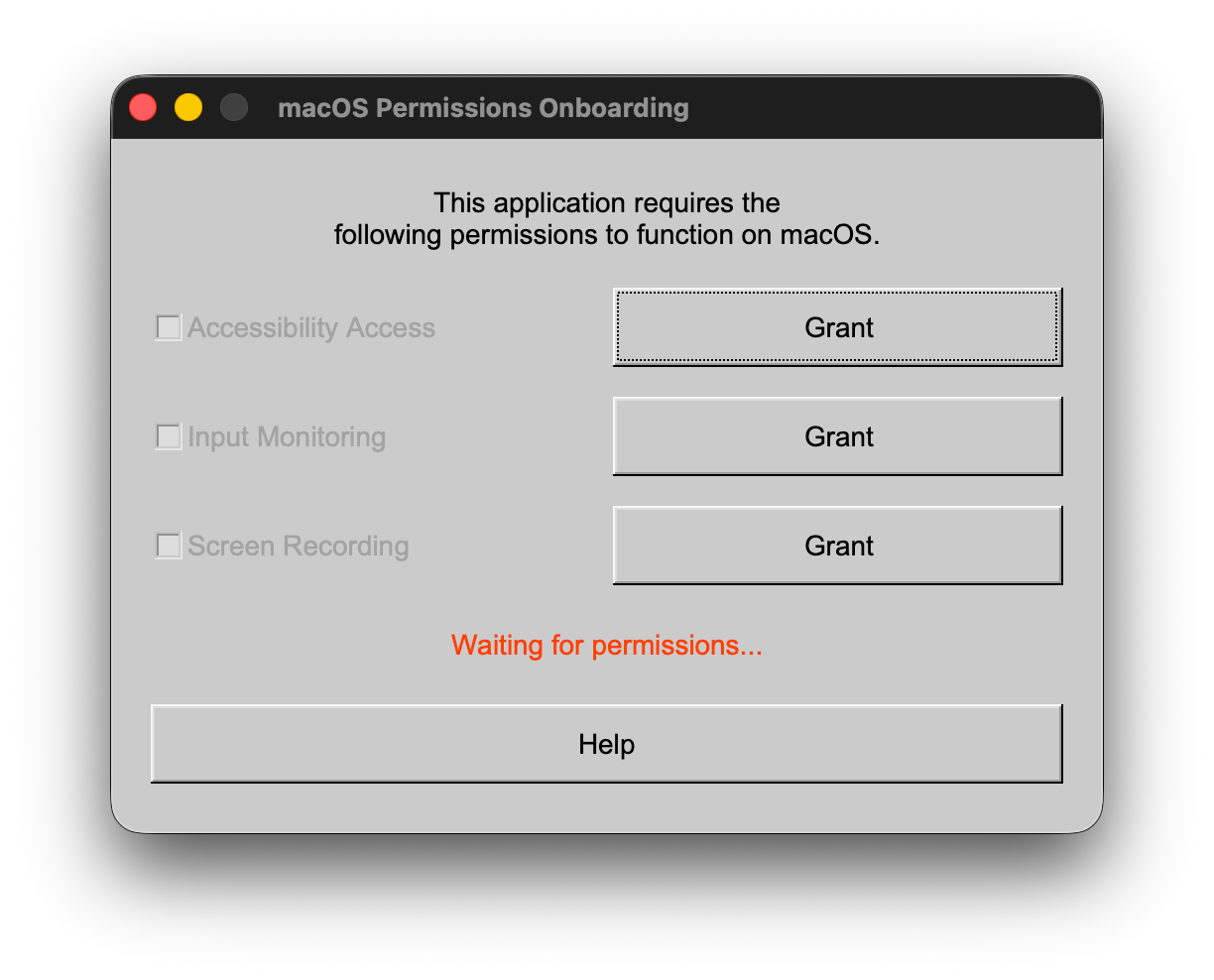
Yes, for both MacOS and Windows, administrator privileges are typically required to execute the installer, modify system environment variables, and ensure proper file permissions for all components.NeuralOps requires some permissions on macOS to operate, for which an advanced onboarding prompt will be presented, and you are solely responsible for sharing them as and when required (based on the EULA).
NeuralOps will automatically prompt you with a message once these permissions are set correctly. In rare cases, you might not get a prompt message, but setting the permissions correctly still works. You should safely close the onboarding dialog and launch the application manually.
How does NeuralOps work?
NeuralOps makes time tracking simple. After configuring your organization and projects, team members use the desktop or web app to record work hours.
NeuralOps runs discreetly in the background with minimal resource usage while tracking. Switching tasks or stopping the tracking is fast. Importantly, NeuralOps records data only when actively tracking time, focusing solely on logging productivity related to professional device use.
How does NeuralOps track users' activity?
NeuralOps is designed to monitor daily activity with a paramount focus on user privacy. This capability is essential for organizations employing remote monitoring practices. While operating in the background, NeuralOps monitors user interactions, specifically keyboard and mouse activity, and captures periodic screenshots, as well as browsing or development activities. Critically, its privacy-first architecture ensures that actual keystrokes are not recorded, nor is invasive data captured from mouse movements or clicks.
Instead, the system records average activity derived from keyboard and mouse usage. This data is utilized to establish an objective benchmark for the productivity level of each team member. NeuralOps operates on a single privacy-first foundation; if a user consents to be actively tracked, only then will their activity be recorded.
How does NeuralOps handle
breaks or timeouts?
NeuralOps handles them elegantly through various use cases. During a personal break or while leaving your desk, even if NeuralOps is active and tracking, there are safeguards that will prevent it from reporting wrong activity. This works through various filters.
First usecase:
NeuralOps is actively tracking (not paused)
User is active, on the desk, and reporting through activity
NeuralOps will track keyboard, mouse, and periodically take screenshots
Second usecase:
NeuralOps is actively tracking (not paused)
User is inactive, but on the desk, and reporting through passive tasks (meetings, readings, recordings)
NeuralOps will cease tracking keyboard and mouse activity, and taking screenshots
An automatic pre-pause notification will appear (roughly around 10-15 minutes), informing the user. Should you choose to resume or pause, if not, your session will be paused automatically.
Does NeuralOps record my screen?
NeuralOps captures screenshots periodically (approximately every 10-15 minutes) when actively tracking (i.e., not paused) and when the user is demonstrably active, indicated by keyboard and mouse input. It does not track, trace, log, or report any data if a user has paused the application or is inactive.
Does NeuralOps record my mic/voice and camera or location data?
NeuralOps does not monitor, log, or retain any data from your microphone, camera, or location data. It is a privacy-first tool designed to enhance productivity and foster greater transparency.
Where does NeuralOps store my data?
NeuralOps operates on storing data locally and on the cloud for a few operations. During active tracking, NeuralOps stores chunks of data locally for persistence, like your daily session, screenshots, and debug logs (if the debug option is turned on). Your local data persistence is automatically purged or deleted (depending on the persistence settings, defaults to 2-3 days)
Periodically, this data is shared with a cloud-based infrastructure, bringing a unified user experience to administrators, managers, or team leads and the end-user, where they can visualize and track their entire day's sessions per day.
These communications strictly adhere to the standard security implementations over SSL (Secure Sockets Layer) and HTTPS (Hypertext Transfer Protocol Secure). The screenshots are stored directly in a secure Amazon S3 bucket, bypassing our servers. For more information, please visit our privacy policy and security policy.

MacOS Installation and Troubleshooting
How to install on macOS?
Download the macOS package from the NeuralOps website. Ensure you are running the installer with elevated privileges. Even if you are logged in as an administrator, try the following:
Right-click the installer package (.pkg file).
Select Open With > DiskImageMounter.app.
Accept the EULA agreement.
Move (drag and drop) the NeuralOps application into Applications
Run the NeuralOps application from LaunchPad or Applications.
Set the correct permissions in the macOS Permissions Onboarding dialog (if required or prompted)
Continue logging in with your credentials
How to uninstall on macOS?
Since macOS packaging has limitations, this step requires manual intervention. Follow the instructions below for a clean uninstallation.
Press Command (⌘) + Spacebar consecutively
In Spotlight Search, type terminal and press enter, or open the terminal window
Once your terminal window is open, copy and paste the following command in your terminal window:
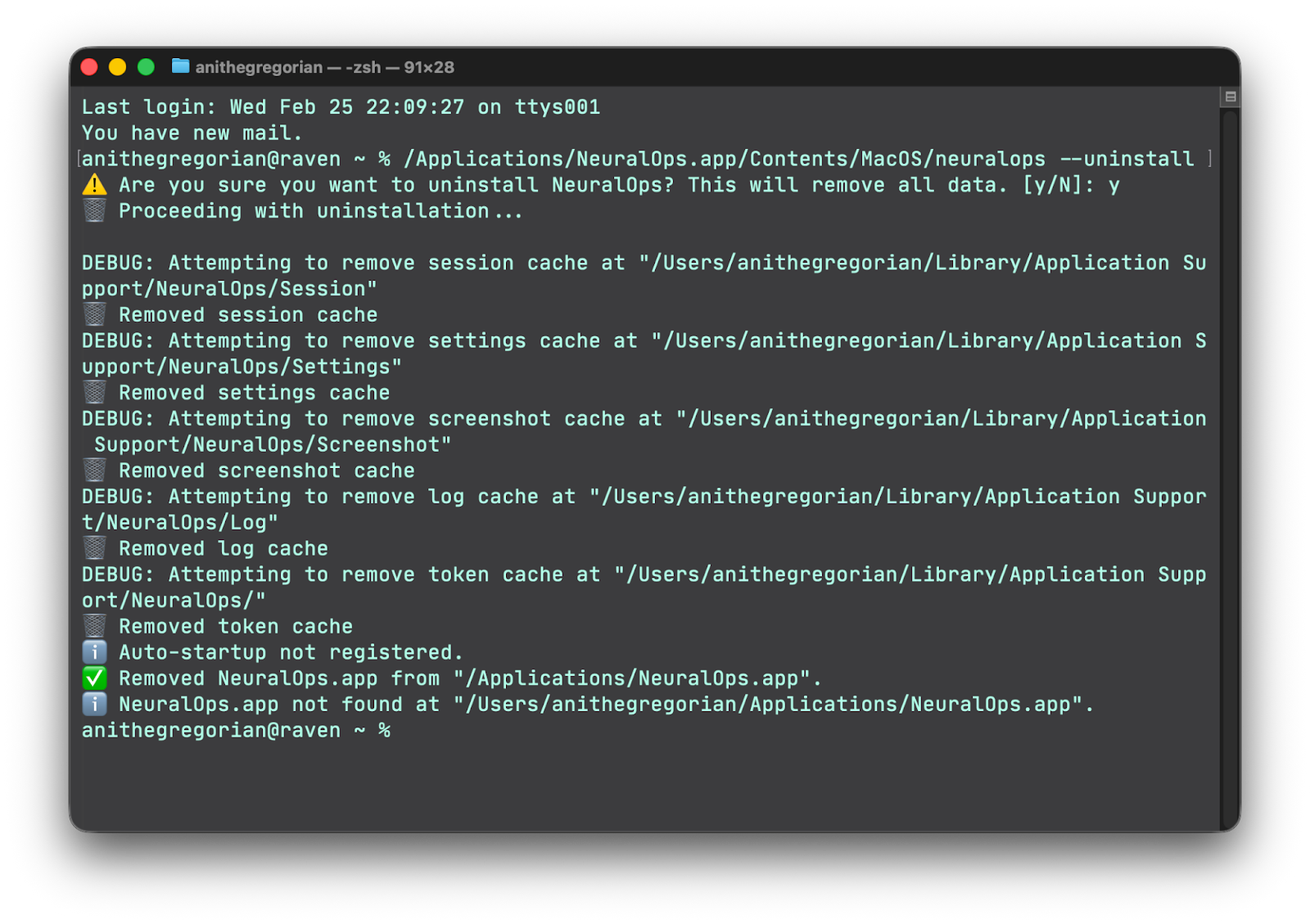
/Applications/NeuralOps.app/Contents/MacOS/neuralops --uninstall
You should see a window with all the steps, like the one below:
Before uninstallation, you’ll receive a prompt for confirmation. On confirmation, it will remove the locally persistent data with the application.
Why is my session or screenshot data not visible on the NeuralOps Dashboard (macOS)?
There could be various reasons, like experiencing network issues, timezone changes, or server-side caching. As your data starts flowing into our servers, it’s cached, and a routine runs intermittently for synchronization. This routine roughly takes about 4-6 hrs to catch up. Once it’s streamlined and stabilized, you should see your real-time data in the NeuralOps Dashboard as well.
In a very unlikely scenario, if this doesn’t happen, follow the steps below:
Press Command (⌘) + Spacebar consecutively
In Spotlight Search, type terminal and press enter, or open the terminal window
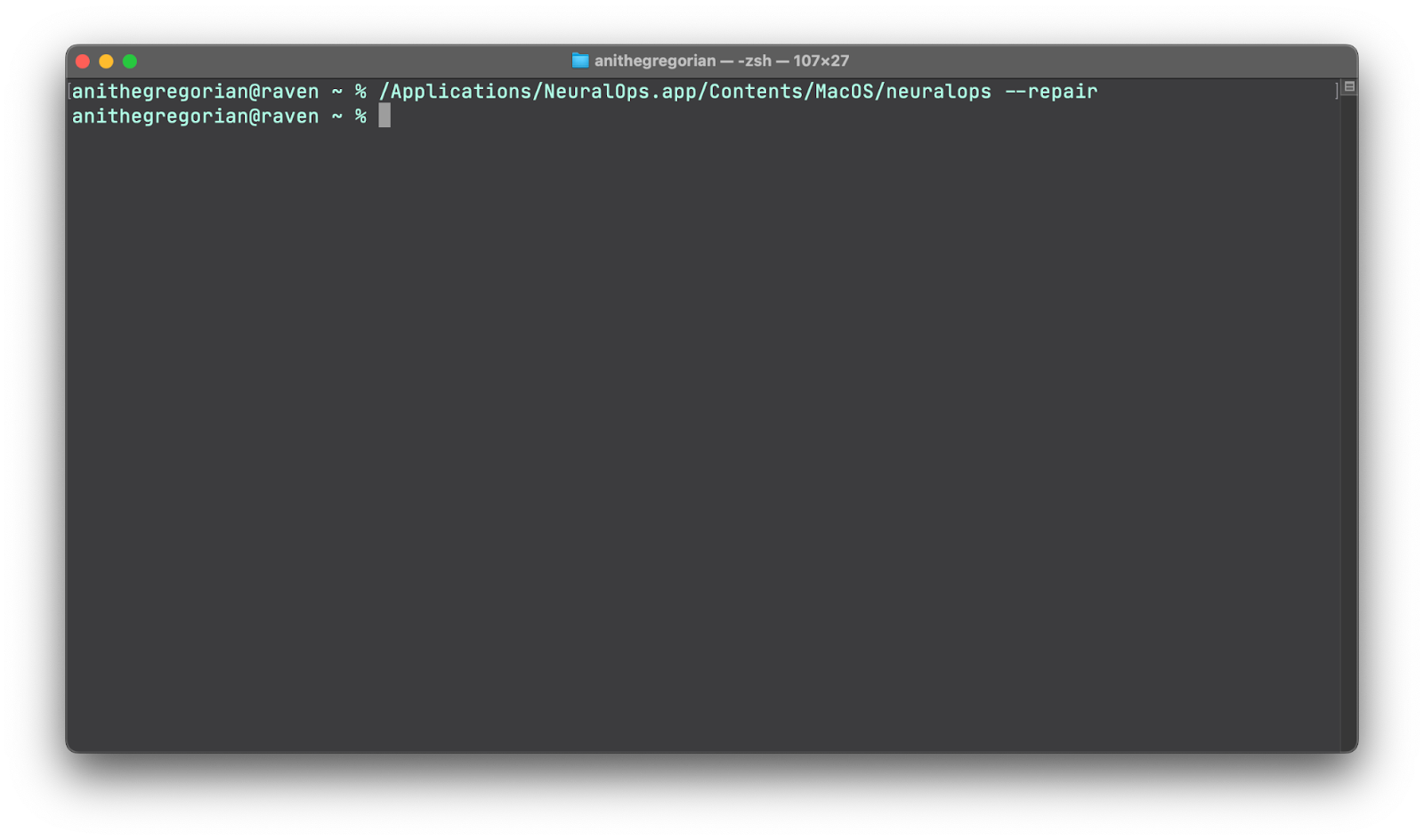
Once your terminal window is open, copy and paste the following command in your terminal window:
/Applications/NeuralOps.app/Contents/MacOS/neuralops --repair
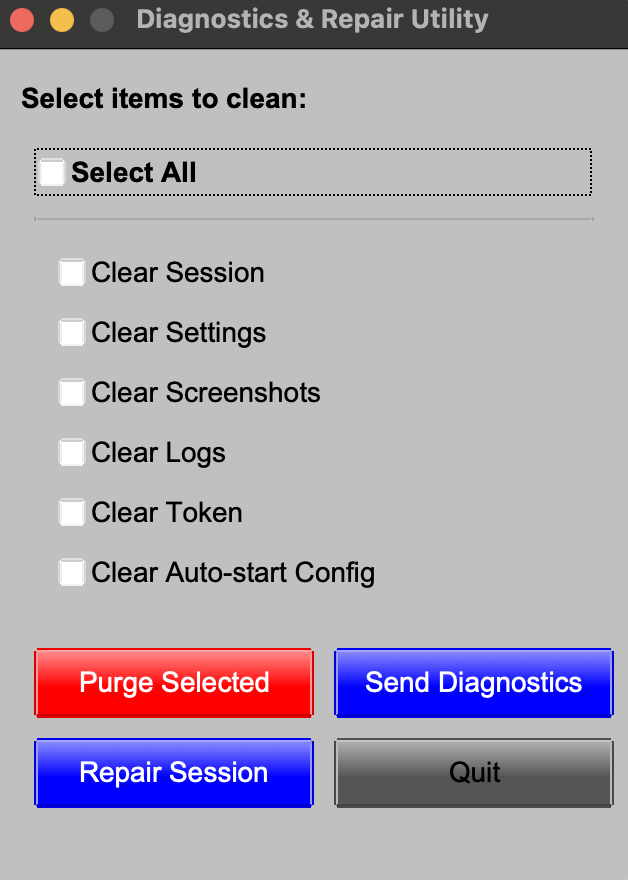
You should see a window like the one below:
Choose only Clear Token and click on the Purge Selected button
Once you complete this step, click the Quit button, then restart the NeuralOps application. When prompted, enter your credentials and log in again to continue
If we happen to need your debug and diagnostics logs (which doesn't happen often!), you can easily send them over by just clicking the Send Diagnostics button—no extra steps needed. This helps us in diagnosing any bugs or issues that may arise unexpectedly (debug setting must be on)

Windows Installation and Troubleshooting
How to install on Windows?
Download the installer from the NeuralOps website. Ensure you are running the installer with elevated privileges. Even if you are logged in as an administrator, try the following:
Right-click the installer package (.exe file).
Select Open as administrator
Accept the EULA agreement
Click Next and continue through the installation
Post installation, keep the checkboxes intact (auto start and run)
Continue logging in with your credentials
How to uninstall on Windows?
Click on the Windows or Start button, and search for add remove programs or Control Panel. Once there, follow these steps to uninstall the application completely:
TBD
Why is my session or screenshot data not visible on the NeuralOps Dashboard (Windows)?
There could be various reasons, like experiencing network issues, timezone changes, or server-side caching. As your data starts flowing into our servers, it’s cached, and a routine runs intermittently for synchronization. This routine roughly takes about 4-6 hrs to catch up. Once it’s streamlined and stabilized, you should see your real-time data in the NeuralOps Dashboard as well.
In a very unlikely scenario, if this doesn’t happen, follow the steps below:
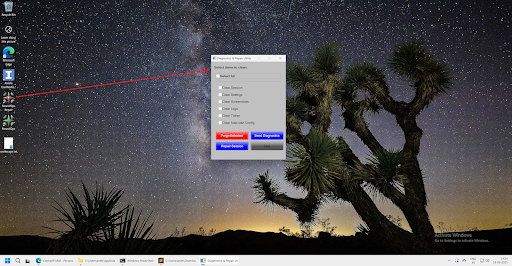
Open the Repair and Diagnostics utility from the desktop
Choose only Clear Token and click on the Purge Selected button
Once you complete this step, click the Quit button, then restart the NeuralOps application. When prompted, enter your credentials and log in again to continue
If we happen to need your debug and diagnostics logs (which doesn't happen often!), you can easily send them over by just clicking the Send Diagnostics button—no extra steps needed. This helps us in diagnosing any bugs or issues that may arise unexpectedly (debug setting must be on)

Seeking Further Assistance
If your issue is not resolved by the steps above, please contact our support team with the following information:
Operating System and version (e.g., Windows 11, MacOS Sonoma 14.1)
Exact error message or screenshot
Steps to reproduce the error (optional)