Resources
Trust-First Productivity Tools: How to Monitor Remote Teams Transparently and Ethically
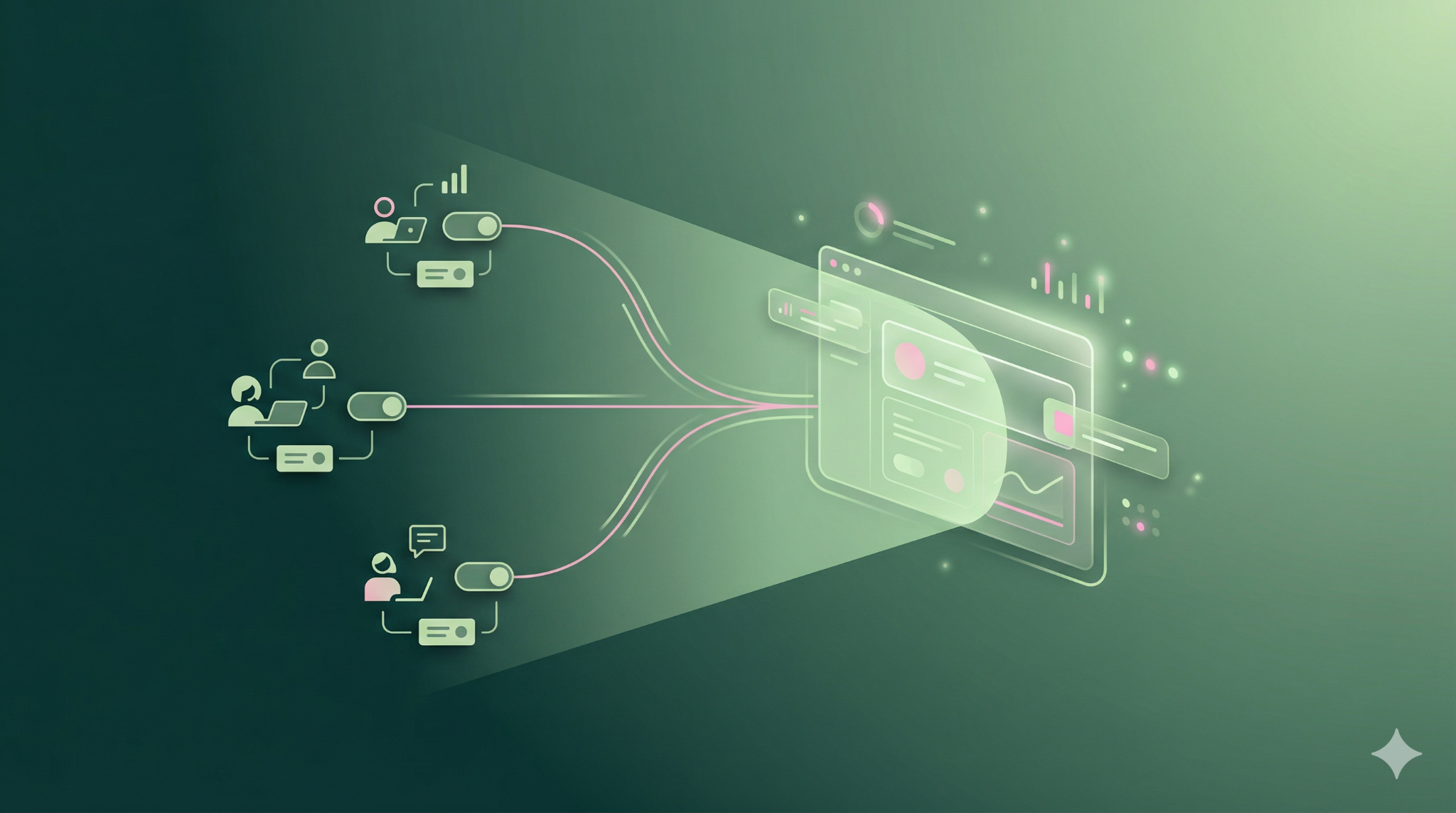
The modern workplace is defined by flexibility, autonomy, and trust — yet managing productivity in distributed teams has never been more complex. As businesses double down on remote and hybrid models, leaders face a delicate balancing act: how to maintain visibility into work output without creating a culture of surveillance.
The instinct to "track" employees has often been viewed through a lens of control. But building a high-performing remote team requires a different approach — one that combines ethical visibility with human-centered design.
At NeuralOps, we believe the future of productivity is transparent, not intrusive. That means no hidden data collection, no keystroke logging, and no blurred lines between work and personal life. Employees are always aware when monitoring is active, always in control of when it runs, and always able to see what's being captured.
This is not just a technological choice — it's a philosophy.
The Trust-Productivity Paradox
For years, organizations have relied on metrics to evaluate performance: time spent online, number of tasks completed, or digital activity levels. These metrics are easy to collect but often meaningless without context.
The result? A growing trust gap between employees and the people who lead them.
According to a 2023 Gartner survey, nearly 48% of remote employees felt uncomfortable knowing their activity was being tracked, while less than 30% believed the data collected actually reflected their true productivity. Monitoring, when done poorly, sends an implicit message: We don't trust you.
Yet the irony is that most employees want to be productive — they just want to be measured fairly. The best leaders know this intuitively: trust fosters ownership, and ownership drives results.
So how can you measure what matters without undermining the very trust that fuels high performance?
The New Era: Transparent, Consent-Based Monitoring
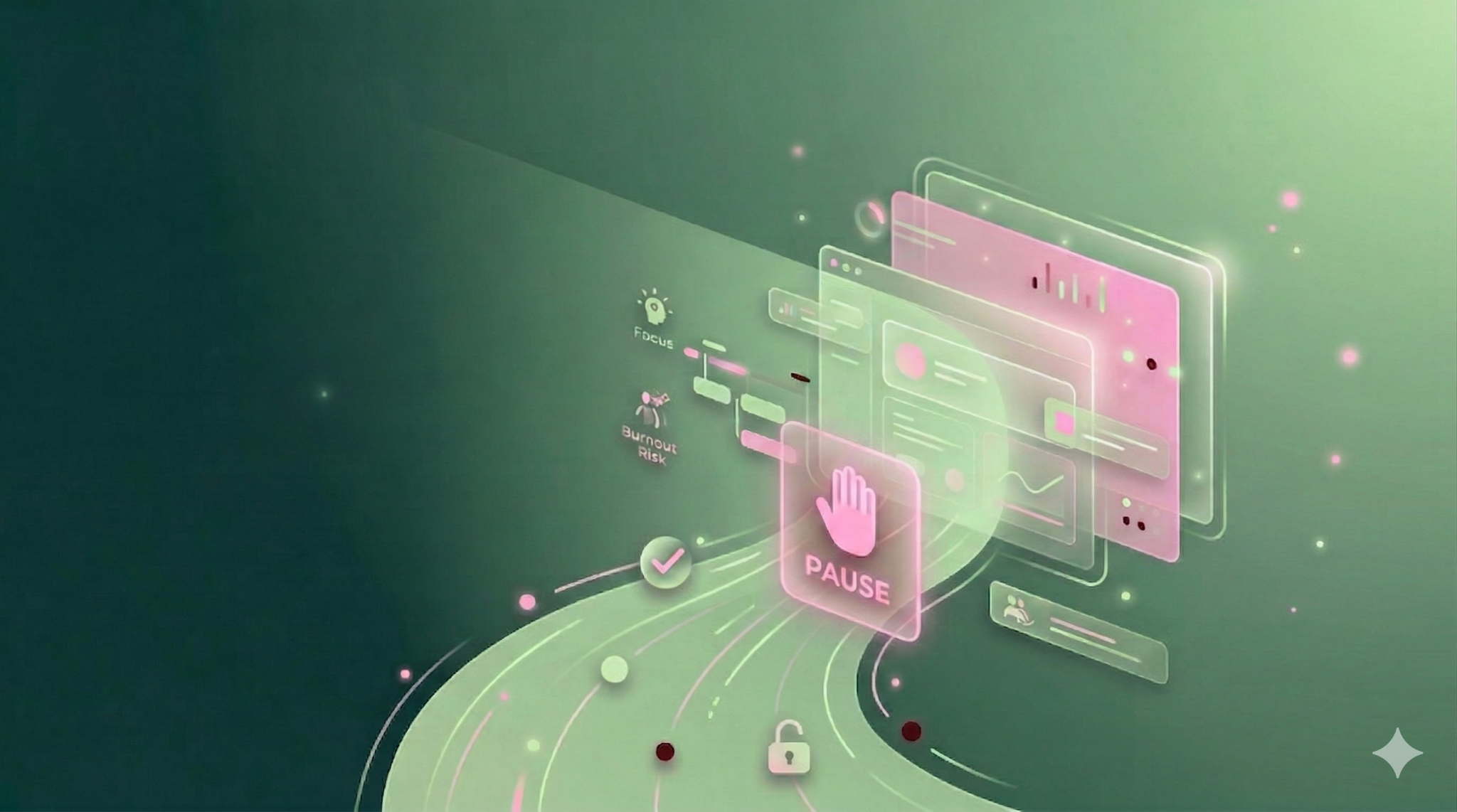
The next generation of productivity tools must evolve beyond surveillance. They need to embrace a "trust-by-design" model — one where every data point is transparent, and every team member knows how and why it's collected.
At NeuralOps, we've built this principle into our product from day one:
Employees can see when monitoring is active, with clear indicators of exactly what's being captured.
Periodic screenshots are taken every 10–12 minutes — but only while the work timer is running. Employees always know this is happening, and can pause it at any time.
There's no keystroke logging, ever.
Users can pause monitoring with one click for personal time, calls, or mental health breaks.
Both individual and team-level dashboards give managers and employees alike a clear, contextual view of work patterns — not just raw activity numbers.
This transparency flips the narrative: productivity tracking becomes a tool for your team, not against them. It helps individuals understand their own work rhythms, identify burnout risks, and improve focus — all without the feeling of being watched without consent.
Transparency is the foundation of trust. And in distributed teams, trust is the foundation of performance.
Why Ethical Productivity is Good Business
Leaders who build remote teams are making a long-term bet on people. Ethical productivity isn't just a moral imperative — it's a competitive advantage.
1. It drives retention. Top talent gravitates toward companies that respect autonomy and privacy. When your team knows that monitoring is transparent and fair, they're more likely to engage, perform, and stay.
2. It reduces burnout. Opaque or heavy-handed monitoring creates anxiety, encouraging employees to stay "visible" rather than productive. Balanced, visible monitoring allows you to spot workload imbalances early, intervene supportively, and protect your team's well-being before burnout sets in.
3. It builds your employer brand. Today's candidates research company culture before they apply. A reputation for ethical monitoring signals progressive leadership — a key differentiator when you're competing for the best people.
4. It enables smarter decision-making. When productivity insights are presented with full visibility and context, you gain powerful data on engagement, focus time, and collaboration patterns — without eroding trust in the process.
In short: ethical visibility scales trust, and trust scales performance.
From Surveillance to Support: Redefining Productivity Metrics
Traditional productivity tracking focused on activity, not outcomes — how many clicks, logins, or hours were recorded. But those metrics ignore creativity, problem-solving, and collaboration — the real drivers of business growth.
NeuralOps reframes this with work rhythm intelligence — analytics that reveal how work naturally flows across the day, without reducing people to timestamps. You can see when your team collaborates best, when focus time peaks, and when burnout risks are emerging — through clean, real-time dashboards designed to inform, not police.
The question shifts from "Who worked most?" to "How can I help my team work better?"
This humanized approach creates a cultural shift:
Managers coach rather than monitor.
Employees self-regulate instead of performing for visibility.
Teams move from anxiety to accountability.
When trust becomes part of the process, productivity follows naturally.
Transparency in Action: NeuralOps' Ethical Framework
Our stance on trust isn't a tagline — it's engineered into every part of NeuralOps' design.
Always Visible: Employees see exactly when monitoring is active and what's being tracked. There are no hidden processes, no ambiguity.
Consent & Control: Every user can pause tracking instantly. Whether it's a personal call or a mental health break, personal time is always respected.
Periodic Screenshots, Done Right: NeuralOps captures screenshots every 10–12 minutes — but only when the work timer is active. Employees know when this is happening, making screenshots a tool for transparency rather than surveillance.
No Keystroke Logging: We track work rhythms and focus patterns, not keystrokes. NeuralOps never records what you type — ever.
Individual and Team Insights: View both team-level productivity trends and individual work rhythms, giving you the right level of visibility for the right context — without micromanagement.
Data Security & Privacy: All data is encrypted and used solely for performance enhancement, not disciplinary action.
This approach creates a mutual accountability model — where both the company and its people share visibility and trust in how data is used.
Building a Culture of Ethical Performance
Technology alone can't create trust. As a leader, you have to pair transparent tools with transparent communication. Here's how to do it:
1. Communicate the "Why" Clearly
Before rolling out any productivity platform, explain what data is being collected, why it's valuable, and how it will be used. When your team understands that monitoring is there to help — not spy — resistance drops dramatically, and adoption follows.
2. Lead as a Coach, Not an Auditor
Train yourself and your managers to interpret productivity data empathetically. Instead of asking "Why were you inactive for 30 minutes?", ask "Do you need more support or focused time during that part of the day?" NeuralOps' dashboards make this shift easy by surfacing context, not just activity.
3. Make Insights a Two-Way Street
Transparency works both ways. When your team can see their own data — focus patterns, productive hours, workload balance — they become active participants in their own growth. This shared visibility builds psychological safety, and psychological safety builds performance.
The Future: Productivity with Trust
The most successful remote-first companies aren't the ones with the most sophisticated surveillance — they're the ones with the most engaged, trusted teams.
As remote and hybrid work continue to evolve, the leaders who win will be those who understand a simple truth: trust is the ultimate productivity driver.
NeuralOps was built on that truth. We believe in transparency over control, insights over intrusion, and performance that grows from respect — not pressure.
Because when your team feels trusted, they don't just work harder — they work smarter, healthier, and happier.